
YouTube Caption Generator
Generate accurate closed captions for a YouTube video and download a clean .srt to upload in YouTube Studio — free, no watermark, and far more accurate than the automatic track YouTube writes for you.
Correct the names and jargon YouTube always gets wrong, export a caption file per language, or burn captions into the picture for Shorts. One transcription, every output.
- Studio-ready .srt
- Replaces auto-captions
- Multi-language tracks
- Free, no watermark
Caption Maker is live. Create a free account and caption your channel today.
Free to start. No credit card, no watermark on your exports.
Download the .srt, upload it under Subtitles in YouTube Studio, done.
A caption track you wrote, not one YouTube guessed
YouTube will caption your video whether you ask it to or not. The problem is what it produces: no punctuation, mangled proper nouns, and a transcript that quietly misrepresents what the video is about to the system deciding who sees it.
Uploading your own .srt replaces that track outright. The captions viewers read, the transcript panel under the player and the text YouTube indexes all become the version you approved.
- Names and jargon spelled correctlyYour channel name, guests, products and technical terms come out right, because you fixed them once before export.
- Punctuation viewers can readSentences, questions and pauses are preserved, instead of a continuous lowercase stream that is exhausting to follow.
- One file per languageAdd a Hindi or Spanish track next to the English one and YouTube shows a language picker in the captions menu.
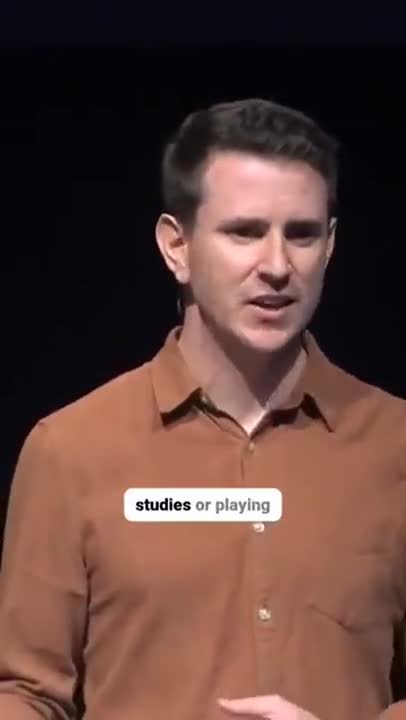
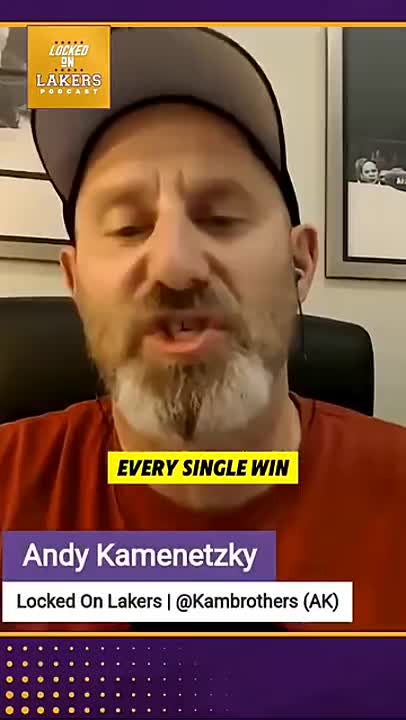
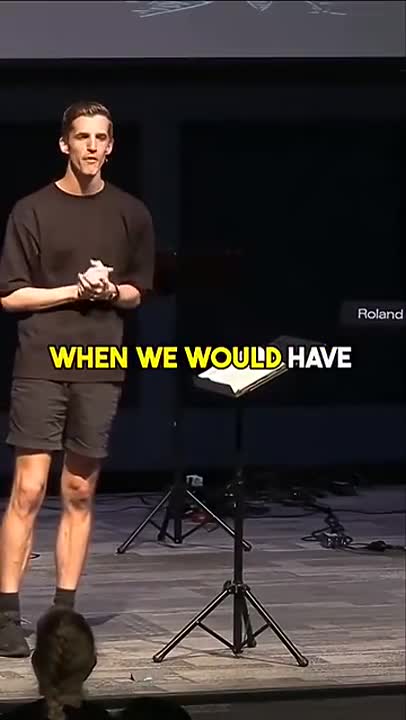
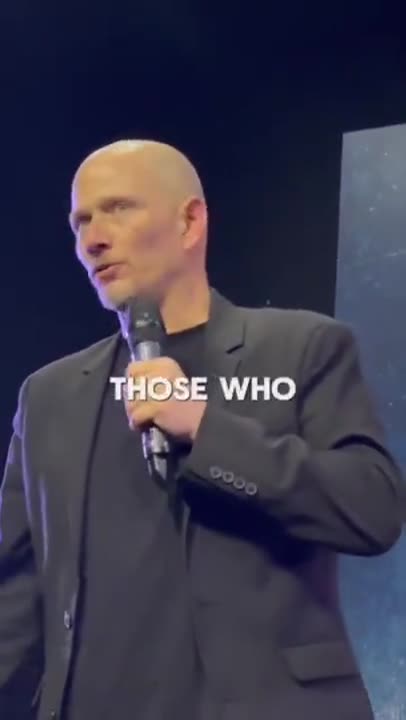
Grow Your YouTube, Instagram & TikTok With AI Subtitles
Auto-generate accurate, viral captions in seconds. Boost engagement and watch time across YouTube Shorts, Instagram Reels, and TikTok clips.



Made for how YouTube actually handles captions
Uploading a subtitle file is a different job from stamping text on a video. This YouTube subtitle generator is built around the first one.
Studio-ready SRT
Correctly formatted cue numbering, comma-decimal timecodes and CRLF line endings — the format YouTube Studio expects, so the upload does not bounce back.
Takes over the auto track
An uploaded caption track supersedes YouTube automatic captions for that language, so viewers never see the guessed version again. Used as a closed caption generator it produces a real, toggleable track rather than text painted onto the picture.
A track per language
Transcribe once and export subtitle files for as many languages as you publish in. Each becomes its own indexed track under the same video.
Long-form without babysitting
Interviews, podcasts and hour-long tutorials process end to end. Context carries across the whole file, so a term introduced in minute two is still spelled right in minute forty.
Fix it before it publishes
Search the transcript, correct a recurring misspelling everywhere at once, and adjust cue timing where a speaker overlaps.
Transcript as a by-product
Take the plain-text version for show notes, a blog post, a newsletter or the video description, without transcribing anything a second time.
How to add captions to a YouTube video
From upload to a published caption track in YouTube Studio.
- 1
Upload the video file
Drop in the same MP4 or MOV you are publishing to YouTube. You do not have to publish the video first, so the captions can be ready before the video goes live.
- 2
Generate and correct the transcript
The YouTube caption generator transcribes with punctuation and casing, then hands you the transcript to fix names, channel-specific jargon, sponsor mentions and numbers.
- 3
Export the .srt and upload it in Studio
Download the file, then in YouTube Studio open Subtitles, choose Upload file and select "With timing". The track publishes straight away and takes over from the automatic one.
Uploaded captions versus YouTube automatic captions
Every YouTube creator already has captions on their videos — they just did not write them. YouTube generates an automatic track for most uploads, and for many channels that track is the only one that exists.
It is better than nothing and worse than it looks. Automatic captions arrive with no punctuation and no capitalisation, which makes long sentences hard to read on screen. They mishear anything unusual: guest names, product names, acronyms, place names, prices, anything spoken quickly. And on some videos and in some languages, they never appear at all.
None of that would matter much if captions were only a viewer convenience. But YouTube reads its own transcript. It uses it to work out what the video is about, which searches it belongs in and what to suggest next to the people who watched it. A transcript full of misheard words is a description of a different video.
Uploading a corrected .srt fixes both halves at once — the captions viewers read and the transcript the platform indexes. It takes one upload per video, and it is the single cheapest thing most channels are not doing.
Punctuation and casing
Auto-captions have neither. Yours have both, which is the difference between reading a sentence and decoding one.
Proper nouns
Guests, sponsors, products and place names are exactly what automatic captions get wrong, and exactly what people search for.
The transcript panel
The transcript under the player is generated from the caption track. Upload a good one and viewers get a readable, jumpable transcript.
Coverage you control
Auto-captions can be missing, delayed or unavailable in your language. An uploaded track is there the moment the video is.
Captions for Shorts are a different job
The same channel usually publishes two very different things, and they do not want the same caption treatment.
A landscape upload is watched deliberately, often with sound, sometimes on a TV. Captions there should be a toggleable track: viewers who want them turn them on, everyone else gets a clean picture, and YouTube gets the transcript either way.
A Short is watched in a muted, vertical, thumb-driven feed. There is no meaningful moment where someone stops to enable captions, and the player chrome sits over the bottom of the frame. Text has to be burned into the picture, large, high in the frame and short enough per line to read while the video is already moving.
Both come from the same transcription pass here — export an .srt for the long-form cut and a captioned MP4 for the Short taken from it.
What to do with the transcript once you have it
The subtitle file is the deliverable, but the transcript underneath it is worth more than most channels use it for.
It is the fastest route to timestamped chapters, since you can see exactly where each topic starts. It is the raw material for show notes and a description that contains the words people actually search. Repurposed, it becomes a blog post, a newsletter section or the pull-quotes for a set of clips — all in the words you already said on camera.
For anyone running a channel and a site, that matters twice over: the video ranks on YouTube with an accurate transcript, and the written version ranks on the web where a video alone cannot.
Related tools
Different destination, same transcription underneath.
Frequently Asked Questions
Studio uploads, auto-captions, and how subtitles for YouTube videos actually get indexed.
Why not just use YouTube automatic captions?
YouTube auto-captions are a fallback, not a finished product. They arrive without punctuation, they guess badly at names, brands, acronyms and numbers, and they are not available at all on some videos or in some languages. Uploading your own corrected .srt replaces them entirely — and because you edited it, the transcript YouTube indexes is the one you actually said.
How do I add subtitles to a YouTube video?
Generate the captions here and download the .srt. In YouTube Studio, open the video, go to Subtitles, choose the language, select Upload file, pick "With timing" and drop the .srt in. It publishes immediately and replaces the automatic track for that language. The same three steps add subtitles to YouTube videos you published years ago, with no re-upload needed.
Does an uploaded SRT help my video rank?
It gives YouTube a clean, accurate transcript to read instead of one it guessed at. That transcript feeds keyword matching, suggested-video placement and the searchable transcript panel under the player. It is not a ranking trick, but a video whose transcript actually says what the video is about is a video the system can categorise correctly.
Do I need burned-in captions or an SRT file for YouTube?
For regular landscape uploads, an .srt: viewers can toggle it, you can serve several languages from the same video, and YouTube indexes the text. For Shorts, burn them in — the Shorts player gives captions far less prominence and the feed plays muted, so on-screen text does the work.
Can I generate captions in more than one language for the same video?
Yes. Transcribe once, then export a separate subtitle file per language and upload each one against its own language track in Studio. Viewers get a language picker in the captions menu, and each track is indexed on its own.
Is there a watermark on the captions or the video?
No. An exported .srt is plain text with timecodes and nothing else in it, and a burned-in export carries your captions and no logo. Nothing is added to the frame, the file name or the end of the video.
How long can the video be?
Long-form uploads are the normal case here — tutorials, interviews, podcasts and webinars all work. Processing scales roughly with runtime, and a long file keeps its accuracy because the model reads the whole thing for context rather than captioning it in isolated chunks.
Can I edit my captions before exporting?
Yes. Correct the transcript, adjust timings, choose a caption style and then export the finished video or a clean SRT or VTT file.
Do I need an account to use Caption Maker?
Caption Maker is live and free to start. Create an account with your email or your Google account, and you can upload, caption and export straight away.
Caption your channel today
Caption Maker is live. Create a free account and add YouTube-ready captions to your next upload.
- No Credit Card Required
- GDPR Compliant
- Secure Upload